
Skip to content
BuyOnceRight: buy once, buy right
Ergonomic Keyboards · Best picks

Best Ergonomic Keyboards for Programmers: 10 Picks for All-Day Coding

Choosing among Ergonomic keyboards is noisy. We cut through it with a research-driven shortlist of 10 standouts for 2026, ranked by real-world value.

On this page

Our top picks

Short on time? Our top recommendation is the Kinesis Freestyle2 Blue for PC (9 Inch Separation) (best fully split). Here's how the shortlist breaks down.

  1. Kinesis Freestyle2 Blue for PC (9 Inch Separation)

    #1 · Best Fully Split

    Kinesis Freestyle2 Blue for PC (9 Inch Separation)

    Shoulder-width positioning is the only design on this list that addresses upper back and shoulder strain, not just wrist angle

  2. Logitech Ergo K860 Wireless Ergonomic Split Keyboard

    #2 · Best Mainstream

    Logitech Ergo K860 Wireless Ergonomic Split Keyboard

    Addresses wrist angle, contact pressure, and pronation in a single unit with no accessory purchases

  3. Perixx Periboard-512B Ergonomic Split Keyboard

    #3

    Perixx Periboard-512B Ergonomic Split Keyboard

    Under 40 dollars is the cheapest genuine split-layout entry point on this list

  4. Microsoft Ergonomic Keyboard (LXM-00004)

    #4

    Microsoft Ergonomic Keyboard (LXM-00004)

    Crisp key feel for a membrane keyboard, better than most budget splits

  5. Kinesis Advantage2 Quiet LF Mechanical Ergonomic Keyboard

    #5

    Kinesis Advantage2 Quiet LF Mechanical Ergonomic Keyboard

    Concave key wells and thumb cluster eliminate the finger stretching that causes strain on flat keyboards

  6. Microsoft Sculpt Ergonomic Keyboard for Business

    #6

    Microsoft Sculpt Ergonomic Keyboard for Business

    At 45-60 dollars it is the cheapest genuine ergonomic improvement on this list

  7. Goldtouch V2 Adjustable Comfort Keyboard

    #7

    Goldtouch V2 Adjustable Comfort Keyboard

    Independent per-half rotation and tenting is a rare feature at this price point

  8. Logitech Wave Keys Wireless Ergonomic Keyboard

    #8

    Logitech Wave Keys Wireless Ergonomic Keyboard

    Wave shape guides fingers into a natural arc with almost no adjustment period

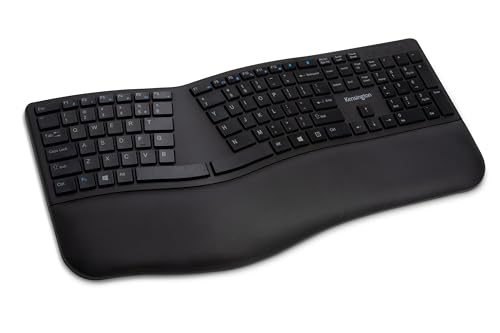
  9. Kensington Pro Fit Ergonomic Wireless Keyboard

    #9

    Kensington Pro Fit Ergonomic Wireless Keyboard

    Moderate splay is easier to adjust to than aggressive split designs

  10. Adesso Tru-Form Media Contoured Ergonomic Keyboard

    #10

    Adesso Tru-Form Media Contoured Ergonomic Keyboard

    Integrated touchpad removes the constant keyboard-to-mouse reach that contributes to shoulder strain

Jump to the full breakdowns
Compare

At a glance

The specs and traits that separate these picks, side by side.

How to read this table
Why it stands out: its biggest strength
Keep in mind: the main trade-off
Best for: the buyer it suits
Comparison: Best Ergonomic Keyboards for Programmers: 10 Picks for All-Day Coding
PickWhy it stands outKeep in mindBest forPrice
Kinesis Freestyle2 Blue for PC (9 Inch Separation) product photo
Kinesis Freestyle2 Blue for PC (9 Inch Separation)
Shoulder-width positioning is the only design on this list that addresses upper back and shoulder strain, not just wrist angleNo integrated palm rest or tenting out of the box; VIP3 accessories are a separate purchase that pushes total cost to 120-150 dollarsprogrammersCheck price
Logitech Ergo K860 Wireless Ergonomic Split Keyboard product photo
Logitech Ergo K860 Wireless Ergonomic Split Keyboard
Addresses wrist angle, contact pressure, and pronation in a single unit with no accessory purchasesFixed chassis caps splay at 9 degrees and cannot address shoulder-width positioningprogrammersCheck price
Perixx Periboard-512B Ergonomic Split Keyboard product photo
Perixx Periboard-512B Ergonomic Split Keyboard
Under 40 dollars is the cheapest genuine split-layout entry point on this listKey feel is noticeably mushy compared to the K860 or Freestyle2programmersCheck price
Microsoft Ergonomic Keyboard (LXM-00004) product photo
Microsoft Ergonomic Keyboard (LXM-00004)
Crisp key feel for a membrane keyboard, better than most budget splitsNo tenting or adjustable splay, the angle is fixed at the factoryprogrammersCheck price
Kinesis Advantage2 Quiet LF Mechanical Ergonomic Keyboard product photo
Kinesis Advantage2 Quiet LF Mechanical Ergonomic Keyboard
Concave key wells and thumb cluster eliminate the finger stretching that causes strain on flat keyboardsColumnar, concave layout requires 1 to 2 weeks of real relearning, not just repositioningprogrammersCheck price
Microsoft Sculpt Ergonomic Keyboard for Business product photo
Microsoft Sculpt Ergonomic Keyboard for Business
At 45-60 dollars it is the cheapest genuine ergonomic improvement on this listWireless dongle is proprietary and factory-paired; losing it means replacing the whole keyboardprogrammersCheck price
Goldtouch V2 Adjustable Comfort Keyboard product photo
Goldtouch V2 Adjustable Comfort Keyboard
Independent per-half rotation and tenting is a rare feature at this price pointWired only, no wireless optionprogrammersCheck price
Logitech Wave Keys Wireless Ergonomic Keyboard product photo
Logitech Wave Keys Wireless Ergonomic Keyboard
Wave shape guides fingers into a natural arc with almost no adjustment periodGentle curve delivers less ulnar deviation relief than a true split like the K860programmersCheck price
Kensington Pro Fit Ergonomic Wireless Keyboard product photo
Kensington Pro Fit Ergonomic Wireless Keyboard
Moderate splay is easier to adjust to than aggressive split designsModerate splay means less ulnar deviation relief than a fully split boardprogrammersCheck price
Adesso Tru-Form Media Contoured Ergonomic Keyboard product photo
Adesso Tru-Form Media Contoured Ergonomic Keyboard
Integrated touchpad removes the constant keyboard-to-mouse reach that contributes to shoulder strainBuilt-in touchpad is less precise than a dedicated mouse for detailed editing or design workprogrammersCheck price
In depth

The 10 best ergonomic keyboards, explained

Why each made the cut, where it falls short, and who it suits best.

Kinesis Freestyle2 Blue for PC (9 Inch Separation)
Best Fully Split

1. Kinesis Freestyle2 Blue for PC (9 Inch Separation)

Kinesis

It stands out for shoulder-width positioning is the only design on this list that addresses upper back and shoulder strain, not just wrist angle and standard QWERTY layout means the adjustment period is about hand positioning, not relearning key locations. The tradeoff: no integrated palm rest or tenting out of the box; VIP3 accessories are a separate purchase that pushes total cost to 120-150 dollars.

  • Fully split halves connected by pivot tether, 0 to 9 inches of separation
  • Standard QWERTY stagger, no columnar relearning
  • Optional VIP3 kit adds 5/10/15-degree tenting and palm rests
  • Low-force membrane switches
  • Bluetooth (Blue model) plus wired USB, Mac/PC DIP switch toggle

Pros

  • Shoulder-width positioning is the only design on this list that addresses upper back and shoulder strain, not just wrist angle
  • Standard QWERTY layout means the adjustment period is about hand positioning, not relearning key locations
  • Tether-connected halves survive daily repositioning without connector wear
  • Works identically on Mac and PC via a physical DIP switch, no drivers needed

Cons

  • No integrated palm rest or tenting out of the box; VIP3 accessories are a separate purchase that pushes total cost to 120-150 dollars
  • 1 to 2 week adaptation period, longer than fixed-split boards like the K860
  • Membrane switches feel mushy next to the mechanical Kinesis Advantage2
  • 9-inch max separation is tethered, not fully wireless between halves
Logitech Ergo K860 Wireless Ergonomic Split Keyboard
Best Mainstream

2. Logitech Ergo K860 Wireless Ergonomic Split Keyboard

Logitech

It stands out for addresses wrist angle, contact pressure, and pronation in a single unit with no accessory purchases and 3 to 5 day adaptation period is the shortest of any split keyboard on this list. The tradeoff: fixed chassis caps splay at 9 degrees and cannot address shoulder-width positioning.

  • 9-degree fixed splay with curved split key groups
  • Integrated memory foam palm rest
  • Adjustable tenting legs for negative tilt
  • Bluetooth multi-device switching across 3 computers plus Logitech Unifying receiver
  • 2-year battery life on 2 AAA batteries

Pros

  • Addresses wrist angle, contact pressure, and pronation in a single unit with no accessory purchases
  • 3 to 5 day adaptation period is the shortest of any split keyboard on this list
  • One-button Bluetooth switching between 3 paired computers suits multi-machine developer setups
  • 2 years per battery set eliminates the recharge-anxiety of most wireless keyboards

Cons

  • Fixed chassis caps splay at 9 degrees and cannot address shoulder-width positioning
  • Full-size layout with integrated number pad pushes the mouse further right
  • Membrane switches lack the tactile break programmers get from mechanical boards
  • At 100-130 dollars it costs more than most budget splits without offering mechanical switches
Perixx Periboard-512B Ergonomic Split Keyboard

3. Perixx Periboard-512B Ergonomic Split Keyboard

Perixx

It stands out for under 40 dollars is the cheapest genuine split-layout entry point on this list and wired connection means zero input latency and no battery to manage. The tradeoff: key feel is noticeably mushy compared to the K860 or Freestyle2.

  • Wired USB split layout
  • Integrated palm rest
  • Fixed splay angle, no independent half positioning
  • Standard QWERTY key stagger

Pros

  • Under 40 dollars is the cheapest genuine split-layout entry point on this list
  • Wired connection means zero input latency and no battery to manage
  • Integrated palm rest delivers real ergonomic benefit despite the low price
  • Good low-risk way to test whether a split layout helps before spending more

Cons

  • Key feel is noticeably mushy compared to the K860 or Freestyle2
  • Build quality is basic plastic that flexes more than premium options
  • Fixed splay means no tenting or adjustment once purchased
  • No wireless option, tying the keyboard to a single desk position
Microsoft Ergonomic Keyboard (LXM-00004)

4. Microsoft Ergonomic Keyboard (LXM-00004)

Microsoft

It stands out for crisp key feel for a membrane keyboard, better than most budget splits and conventional layout keeps the learning curve short, typically under a week. The tradeoff: no tenting or adjustable splay, the angle is fixed at the factory.

  • Wired USB split layout with cushioned palm rest
  • Conventional key stagger for a shorter adjustment period
  • Crisp membrane switch feel
  • No software or drivers required

Pros

  • Crisp key feel for a membrane keyboard, better than most budget splits
  • Conventional layout keeps the learning curve short, typically under a week
  • Cushioned palm rest is integrated rather than a separate add-on
  • Simple wired USB setup that IT departments can standardize without software installs

Cons

  • No tenting or adjustable splay, the angle is fixed at the factory
  • Wired only, no Bluetooth or wireless option
  • Splay is modest, so it does less for shoulder strain than a fully split board
  • No programmable keys or macro support
Kinesis Advantage2 Quiet LF Mechanical Ergonomic Keyboard

5. Kinesis Advantage2 Quiet LF Mechanical Ergonomic Keyboard

Kinesis

It stands out for concave key wells and thumb cluster eliminate the finger stretching that causes strain on flat keyboards and cherry MX Silent Red switches give tactile, low-force mechanical feedback without loud clacking. The tradeoff: columnar, concave layout requires 1 to 2 weeks of real relearning, not just repositioning.

  • Contoured concave key wells with columnar key layout
  • Integrated thumb cluster for modifier keys
  • Quiet Cherry MX Silent Red mechanical switches
  • Fully programmable via Kinesis SmartSet engine, onboard remapping and macros
  • Integrated palm supports

Pros

  • Concave key wells and thumb cluster eliminate the finger stretching that causes strain on flat keyboards
  • Cherry MX Silent Red switches give tactile, low-force mechanical feedback without loud clacking
  • SmartSet programmable engine supports full remapping for Vim motions and IDE shortcuts without extra software
  • Widely regarded by programmers as delivering the largest ergonomic improvement of any keyboard in this list

Cons

  • Columnar, concave layout requires 1 to 2 weeks of real relearning, not just repositioning
  • At 300-350 dollars it is the most expensive keyboard on this list by a wide margin
  • Large footprint and unconventional shape make it impractical to travel with
  • No backlighting and a dated USB-only connection, no Bluetooth
Microsoft Sculpt Ergonomic Keyboard for Business

6. Microsoft Sculpt Ergonomic Keyboard for Business

Microsoft

It stands out for at 45-60 dollars it is the cheapest genuine ergonomic improvement on this list and detached number pad keeps the mouse close to the keyboard, reducing reach-related shoulder strain. The tradeoff: wireless dongle is proprietary and factory-paired; losing it means replacing the whole keyboard.

  • Dome-shaped split key bed with detached number pad
  • Cushioned detachable palm rest
  • Proprietary wireless dongle paired at the factory
  • Compact footprint that keeps the mouse close to centerline

Pros

  • At 45-60 dollars it is the cheapest genuine ergonomic improvement on this list
  • Detached number pad keeps the mouse close to the keyboard, reducing reach-related shoulder strain
  • Dome shape reduces ulnar deviation about as effectively as pricier split boards
  • Over a decade of market presence with a large installed base and known reliability

Cons

  • Wireless dongle is proprietary and factory-paired; losing it means replacing the whole keyboard
  • No tenting adjustment, the dome angle is fixed
  • Detached number pad adds desk clutter compared to single-unit keyboards
  • Membrane switches with limited key travel feel low-effort under sustained typing
Goldtouch V2 Adjustable Comfort Keyboard

7. Goldtouch V2 Adjustable Comfort Keyboard

Goldtouch

It stands out for independent per-half rotation and tenting is a rare feature at this price point and lets programmers dial in the exact splay and pronation angle that feels neutral, rather than accepting a factory-fixed angle. The tradeoff: wired only, no wireless option.

  • Independently rotating halves, up to 30 degrees splay each
  • Independent tenting up to 15 degrees per half
  • Wired USB connection
  • Compact modular design

Pros

  • Independent per-half rotation and tenting is a rare feature at this price point
  • Lets programmers dial in the exact splay and pronation angle that feels neutral, rather than accepting a factory-fixed angle
  • Solid build for a budget adjustable split keyboard
  • Compact modular halves take up less desk space than a fully split tethered board

Cons

  • Wired only, no wireless option
  • Adjustment mechanism adds a learning curve to find the right angle, more fiddly than fixed-splay boards
  • No integrated palm rest included
  • Membrane switches with a plasticky feel compared to mechanical options
Logitech Wave Keys Wireless Ergonomic Keyboard

8. Logitech Wave Keys Wireless Ergonomic Keyboard

Logitech

It stands out for wave shape guides fingers into a natural arc with almost no adjustment period and good transition board for typists moving from a flat keyboard toward a full split like the K860 or Freestyle2. The tradeoff: gentle curve delivers less ulnar deviation relief than a true split like the K860.

  • Gentle wave-shaped key bed, not a full split
  • Integrated palm rest
  • Bluetooth and Logitech Unifying receiver connectivity
  • Quiet membrane switches

Pros

  • Wave shape guides fingers into a natural arc with almost no adjustment period
  • Good transition board for typists moving from a flat keyboard toward a full split like the K860 or Freestyle2
  • Integrated palm rest and quiet keys make it comfortable for open-office use
  • Reliable Logitech wireless connectivity with long battery life

Cons

  • Gentle curve delivers less ulnar deviation relief than a true split like the K860
  • No tenting adjustment
  • Not a meaningful upgrade path for programmers with existing wrist pain who need a real split
  • Full-size layout takes up more desk space than compact alternatives
Kensington Pro Fit Ergonomic Wireless Keyboard

9. Kensington Pro Fit Ergonomic Wireless Keyboard

Kensington

It stands out for moderate splay is easier to adjust to than aggressive split designs and quiet keys suit open-office and shared-space environments. The tradeoff: moderate splay means less ulnar deviation relief than a fully split board.

  • Wireless split keyboard with moderate splay angle
  • Quiet key switches
  • Compact low-profile design
  • 2.4GHz wireless receiver

Pros

  • Moderate splay is easier to adjust to than aggressive split designs
  • Quiet keys suit open-office and shared-space environments
  • Low-profile build fits under standard monitor arms and keyboard trays
  • Reliable 2.4GHz wireless with minimal input lag

Cons

  • Moderate splay means less ulnar deviation relief than a fully split board
  • No tenting legs included
  • Palm rest is thinner and less supportive than the K860's
  • Battery life is shorter than AAA-powered competitors, requiring more frequent recharging
Adesso Tru-Form Media Contoured Ergonomic Keyboard

10. Adesso Tru-Form Media Contoured Ergonomic Keyboard

Adesso

Your hands don't know the difference between a bug you're chasing at 2pm and one you're chasing at 9am, but by hour six they're paying for both. It stands out for integrated touchpad removes the constant keyboard-to-mouse reach that contributes to shoulder strain and split layout with contoured wells gives real ergonomic benefit at a mid-range price. The tradeoff: built-in touchpad is less precise than a dedicated mouse for detailed editing or design work.

  • Split keyboard with built-in touchpad
  • Wired USB connection
  • Contoured key wells
  • Eliminates separate mouse for reduced reach

Pros

  • Integrated touchpad removes the constant keyboard-to-mouse reach that contributes to shoulder strain
  • Split layout with contoured wells gives real ergonomic benefit at a mid-range price
  • Single-cable wired setup with no dongle or pairing required
  • Useful for tight desks where a separate mouse isn't practical

Cons

  • Built-in touchpad is less precise than a dedicated mouse for detailed editing or design work
  • Bulkier chassis than a standard split keyboard due to the touchpad module
  • Membrane switches feel basic and offer little tactile feedback
  • Wired only, no wireless option
Head-to-head

Compare the top picks

Torn between our leading picks? These side-by-side comparisons settle it.

How we chose these picks

This shortlist is the product of research, not advertising. We cross-checked manufacturer specs against independent reviews and long-term owner feedback, then ranked by value for real use cases.

Mistakes buyers often make

  • Buying on brand name alone instead of matching features to your actual use case.
  • Overpaying for headline specs you'll never use, define must-haves first.
  • Ignoring size, compatibility, and ongoing costs (filters, accessories, refills).
  • Trusting star ratings without reading what owners complain about after 6 months.

How we chose these picks

  • We started from manufacturer specifications and feature lists, the verifiable foundation.
  • We weighed reputable independent reviews from established tech and consumer publications.
  • We read large volumes of verified-owner feedback to find patterns in reliability and satisfaction.
  • We scored value: what you get for the price, not just absolute performance.
  • We excluded products with thin, suspicious, or heavily incentivized review profiles.

We don't claim hands-on testing we haven't done. Assessments synthesize manufacturer specifications, reputable independent reviews and documented owner feedback. Read our methodology.

Before you buy

Buying guide

How to choose: the factors that matter

  • Capacity and sizing, Measure your space and your actual use before falling for bigger-is-better. The right size is the one that fits your routine, not the spec sheet's maximum.
  • Build quality and materials, Heavier-gauge materials, tight tolerances, and solid joints outlast thin, rattly construction. In reviews, look for longevity comments over first-impression praise.
  • Ease of use and setup, Clear instructions, intuitive controls, and minimal assembly separate daily drivers from garage ornaments.
  • Maintenance and cleaning, Whatever you buy will need cleaning. Removable, dishwasher-safe, or wipe-clean parts get maintained; fiddly ones get neglected.
  • Warranty and support, A multi-year warranty signals the manufacturer expects it to last. Check what's actually covered, motors and frames matter more than accessories.

The bottom line

If you want the short answer: the top pick above suits most buyers, the value pick suits tight budgets, and the specialist picks suit specific needs. Match the pick to your use case, not to the hype.

Answers

Frequently asked questions

What are the best ergonomic keyboards for programmers right now?

Our top pick is the Kinesis Freestyle2 Blue for PC (9 Inch Separation) (best fully split), because shoulder-width positioning is the only design on this list that addresses upper back and shoulder strain, not just wrist angle. The runner-up is the Logitech Ergo K860 Wireless Ergonomic Split Keyboard (best mainstream), followed by the Perixx Periboard-512B Ergonomic Split Keyboard.

Which of the ergonomic keyboards for programmers should I buy?

It depends on what matters most to you. For fully split, choose the Kinesis Freestyle2 Blue for PC (9 Inch Separation). For mainstream, choose the Logitech Ergo K860 Wireless Ergonomic Split Keyboard.

Is the Kinesis Freestyle2 Blue for PC (9 Inch Separation) worth it?

For most buyers, yes. It ranks #1 in our ergonomic keyboards for programmers research, though no integrated palm rest or tenting out of the box; VIP3 accessories are a separate purchase that pushes total cost to 120-150 dollars.

Do programmers need a fully split keyboard?

Not necessarily, but programmers benefit more from split layouts than most users because they type more hours per day and reach for symbols and modifier keys more frequently. A fixed-split keyboard like the Logitech K860 reduces ulnar deviation without requiring separate positioning of two halves. A fully split keyboard like the Kinesis Freestyle2 allows shoulder-width positioning that also addresses shoulder strain, which is the next most common complaint after wrist pain in programmers who type 8+ hours daily. Try a fixed split first; if shoulder and upper back strain persists, upgrade to fully split.

Should programmers use mechanical or membrane ergonomic keyboards?

Mechanical switches provide tactile feedback and consistent actuation that reduce the force needed per keystroke over a full day. Over 8 hours of coding, the lower force requirement of a light tactile switch reduces hand fatigue measurably. However, most ergonomic keyboards under 150 dollars use membrane switches, and the ergonomic layout benefit outweighs the switch type. If budget allows, a mechanical split like the Kinesis Advantage2 combines both benefits. If budget is tight, prioritize the split layout over the switch type.

Are compact ergonomic keyboards good for programming?

Compact layouts without a number pad bring the mouse closer to the centerline, which reduces the reaching motion that contributes to shoulder strain. For programmers who rarely use a number pad, a tenkeyless or 65 percent ergonomic layout is ideal. The downside is that compact layouts often relocate function keys, navigation clusters, and arrow keys behind layers, which can slow down editing workflows that rely on those keys. If you use Home, End, Page Up, and Page Down frequently while editing, a full-size ergonomic keyboard keeps those keys accessible.

How do I set up an ergonomic keyboard for coding?

Three adjustments matter most. First, position the keyboard so your elbows are at 90 degrees and your wrists float above the keys in a neutral position without bending up or down. Second, if the keyboard has tenting legs, use them to angle the inner edge up, reducing wrist pronation. Third, remap keys to reduce pinky strain: swap Caps Lock with Ctrl (the most common ergonomic remap in the programming community), map Escape to a thumb key if available, and consider a compose key for frequently used symbol combinations. The physical layout changes your wrist angle; the key remapping changes your finger strain distribution.

Keep researching